A ping when they reply
Someone writes back. Your lock screen says so. You don’t hunt a tab.
On your phone
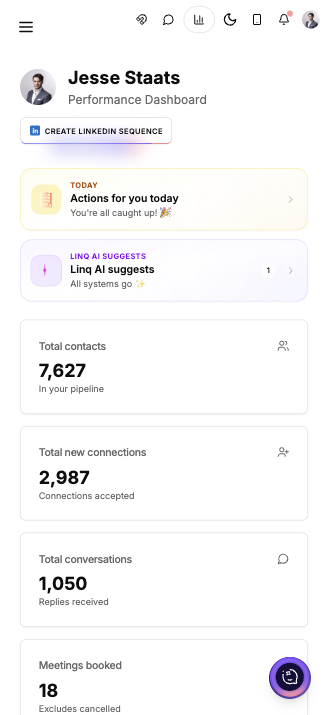
Same Linq. Same inbox. Add Linq to your home screen and it opens like an app — replies, meetings, the lot.
Why bother
Leave the laptop in the bag. Replies still land. Meetings still show up.
A ping when they reply
Someone writes back. Your lock screen says so. You don’t hunt a tab.
Inbox, minus the browser
Tap the icon. You’re in. No address bar. No ‘which tab was that?’
Meetings on the train
See who booked. Peek the brief. Wave at your pipeline between stops.
How to add it
Open Linq in your phone’s browser once. Put it on the home screen. After that, it behaves like any other app.
iPhone
Android
The icon sits next to your other apps. Tap it. That’s it. We’ll only ping you when someone replies — after you say yes to notifications.
Once it’s on your home screen
A reply. A booked meeting. A lead that just got warm. On your lock screen, not buried in email.
New reply
Anna wrote back — she’s free Thursday.
Start free in two minutes. Open Linq on your phone, put it on the home screen, and keep tapping.